Account and security
This topic explains how to sign in to the application, turn on two-factor authentication (2FA), change your password, and what happens when an account is locked.
Who can do what
| Action | Admin | Supervisor | Agent |
|---|---|---|---|
| Sign in, set up their own 2FA, change their own password | Yes | Yes | Yes |
| Create users and fill in the User ID in Business Settings > Users | Yes | No | No |
| Reset the 2FA of another user | Yes | No | No |
| Unlock an account | No | No | No |
Only the platform operator can unlock an account, or the account unlocks by itself after the lock time ends.
Sign in to the application
- Open the sign-in page.
- Enter your Email address and password.
- Complete the Security Verification, then click the sign-in button.
- Complete the second step that the application asks for. The step depends on your account settings (see the table below).
- After the second step is correct, the dashboard appears.
| Account condition | Second step |
|---|---|
| 2FA is on | Enter the Authenticator code from the authenticator app on your phone. |
| 2FA is not on yet | Enter the 6-digit code sent to your email. The code is valid for 30 minutes. |
| The business requires a User ID | In addition to the code above, enter the User ID that your Admin gave you. |
| The business uses a User ID instead of an email code, your Admin has filled in your User ID, and 2FA is not on yet | Enter only the User ID. No email code is sent. |
Note the following:
- You can resend the email code at most 3 times in 10 minutes.
- After 5 wrong entries of the email code or the User ID, you must wait up to 10 minutes before you try again.
- If you select Remember me when you sign in with an email code, the email code is not asked again for the next 7 days, only in that browser. Other browsers and devices are still asked for the email code. The remembered browser is forgotten if your password is changed or reset, if your account is deactivated, or if you turn on 2FA.
- At sign-in, after 5 wrong authenticator codes in one minute from the same device, you must wait 1 minute before you try again.
- A user whom an Admin has deactivated cannot sign in. The message shown is the same as the message for a wrong password.
- The platform operator turns on the User ID setting for your business.
Two-factor authentication (2FA)
With 2FA, you sign in with your password and a code from an authenticator app on your phone, for example Google Authenticator. Each user sets up 2FA for their own account.
Turn on 2FA
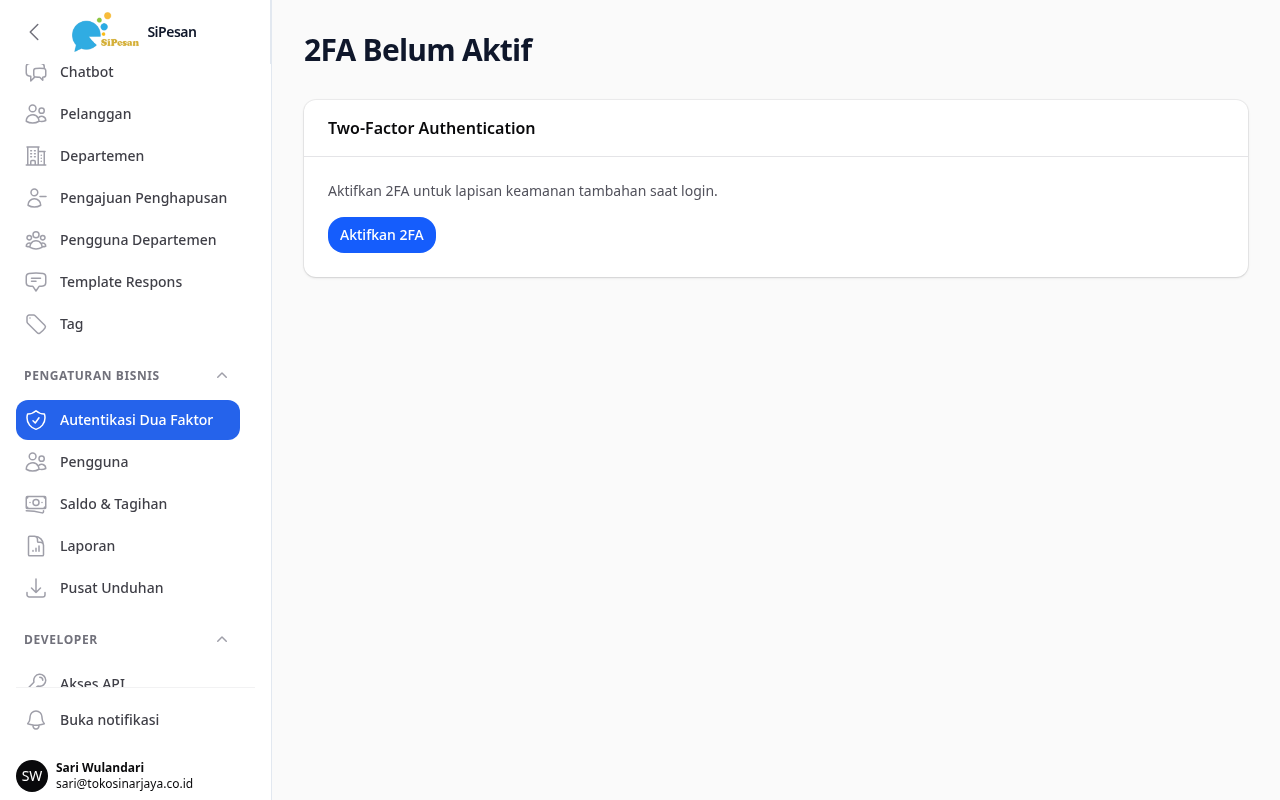
- Open Business Settings > Two-Factor Authentication.
- Click Enable 2FA.
- Scan the QR code with the authenticator app. If you cannot scan it, enter the key shown below the QR code.
- Enter the 6-digit code from the authenticator app, then click Verify and enable.
- Store the 8 recovery codes that appear in a safe place. These codes are shown only once.
- Click I have saved these codes. The page title changes to 2FA is on.
Recovery codes
Use a recovery code if you lose your phone or the authenticator app is deleted. Enter the recovery code in the Authenticator code field when you sign in. Each code can be used only once, and the application shows the remaining unused codes.
To create new codes, enter an authenticator code in the Regenerate recovery codes section on the same page. The old codes stop working right away.
Trusted devices
When you enter the authenticator code, select Trust this device for 7 days so that the browser does not ask for the authenticator code for 7 days. If your business requires a User ID, the code page still appears.
The list of trusted devices is in the Trusted devices section. Click Revoke to remove one device.
Turn off 2FA
- Open Business Settings > Two-Factor Authentication.
- Enter the current authenticator code in the Turn off 2FA section.
- Click Turn off 2FA. All trusted devices are removed as well.
2FA reset by an Admin
If a user loses both the phone and the recovery codes, an Admin can turn off the 2FA of that user.
- Open Business Settings > Users.
- Click Reset 2FA on the user row. This button appears only for users who have 2FA on.
- Confirm in the window that appears. The 2FA of the user turns off and all of the user's trusted devices are removed.
The user then signs in with the second step for accounts without 2FA, and can turn on 2FA again.
Change your password
- Click your avatar in the top right, then click your name to open the Profile page.
- Enter the New password and Confirm new password.
- Enter the Current password. This field appears after you enter the new password.
- Click Save changes.
Forgotten password
- On the sign-in page, click Forgot password?.
- Enter the email address of your account. The application sends a 6-digit verification code to that email.
- Enter the verification code, the new password, and its confirmation.
- Click the reset button. After it succeeds, sign in with the new password.
Note that changing your password does not unlock an account that is locked.
Required password change
The application asks you to change your password if:
- An Admin has just created your account. The temporary password is sent in the invitation email, or the Admin shares it directly if your business uses a User ID instead of an email code.
- An Admin set a new password for your account. This is possible only in businesses that use a User ID instead of an email code.
- The platform operator reset your password.
After you sign in, you go to the Password Change Required page. Enter the temporary password in Current Password, then enter the New Password (at least 8 characters) and Confirm New Password. Click Change Password. You can open other pages only after the password is changed.
Locked accounts
An account is locked automatically after 10 failed sign-ins in 60 minutes. The failures counted are a wrong password, a wrong email code, a wrong User ID, a wrong authenticator code, and a failed security verification. A successful sign-in does not clear this count. The lock lasts 60 minutes.
While the account is locked, even the correct password is rejected with the message "The account is temporarily locked after too many attempts. Try again later or contact an admin." Wait until the lock time ends, or ask the platform operator to unlock your account. Business Admins have no button to unlock it.
Also, the 10 attempts, the 60 minutes, and the lock duration are default settings. The platform operator can change them.
Emails and security notifications
The application sends you an email for:
- The 6-digit sign-in code.
- The verification code for a forgotten password.
- The invitation to a new account, with the temporary password.
The application does not send an email when your account is locked, when someone signs in from a new device, or when 2FA is turned on or off. A 2FA change is shown only as an on-screen notification. Account lock events are recorded for the platform operator.