Customers
In the Chat Settings > Customers menu, you see every customer who has contacted your business, complete their data, and export it to Excel. A new customer is recorded automatically when their first message comes in.
Admins and Supervisors can open the Customers menu. Agents do not see this menu. Only Admins can open the Chat Settings > Deletion Requests menu.
Search for customers
- Open Chat Settings > Customers.
- Type a name, email, phone number, or WhatsApp ID in the search field.
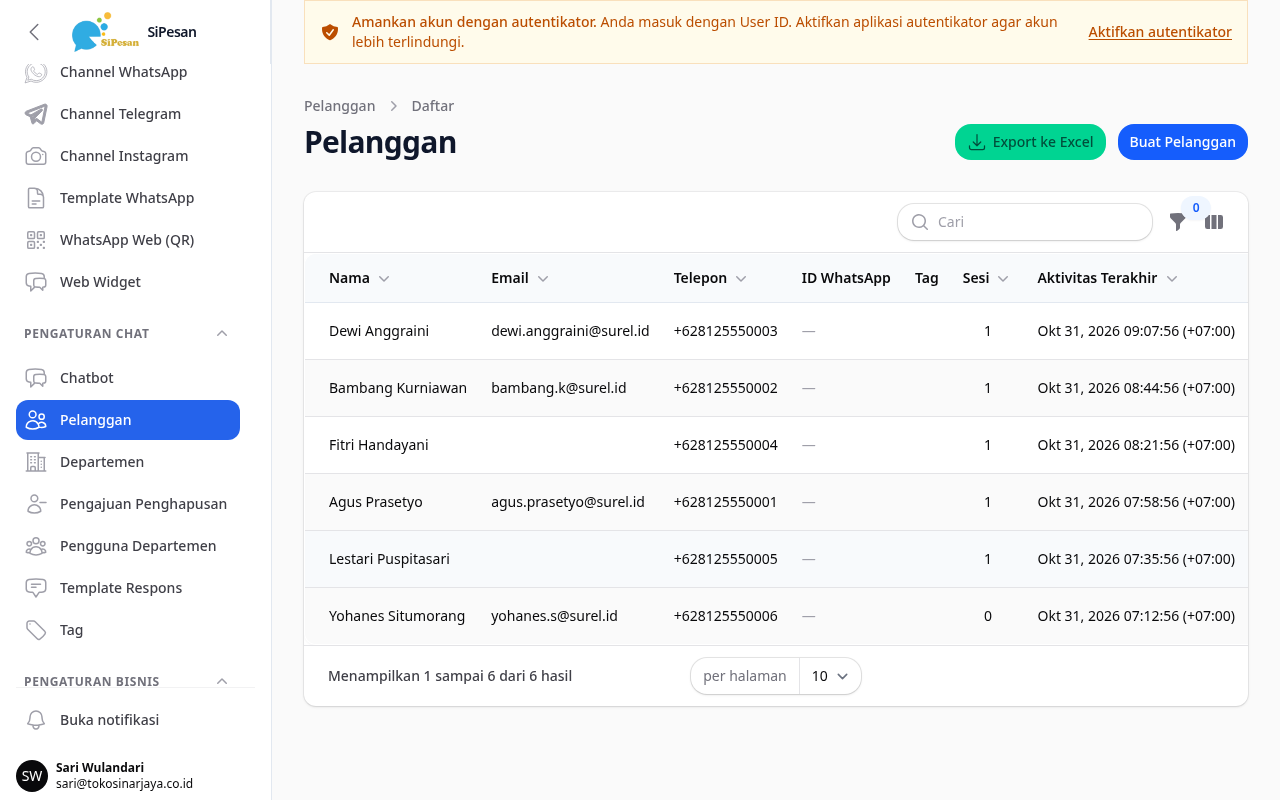
- Use the Tags, Session Status, or Recently Active (24h) filter to narrow the list.
The list shows the name, email, phone, WhatsApp ID, tags, number of sessions, and last activity of each customer.
Add and edit customer data
- Open Chat Settings > Customers.
- Click the edit icon on the customer's row. For a new customer, click the create button at the top right.
- Enter or correct the Customer Name, Email, and Phone.
- Select Tags. If the tag you need does not exist yet, you can create it directly from this field.
- Add Custom Fields for other information, for example "No. Member" with the value "00123" or "Kota" with the value "Bandung".
- Click Save changes. For a new customer, the button is Create.
Note that the Customers menu has no delete button. You delete customer data through a deletion request, as described below.
Export customer data
- Open Chat Settings > Customers.
- Set the search and filters if you want to export only some customers.
- Click Export to Excel.
- Click Export Excel to confirm.
- Wait until the file is ready, then download it from Business Settings > Download Center.
Also:
- The export follows the search and filters that are active in the list.
- While your customer export is still processing, you cannot create a new export.
- Customers who are in a deletion request are not included in the export.
- Admins and Supervisors can create this export. A Supervisor can download every export in your business, including exports created by an Admin. Only an Admin or the person who created an export can delete it.
Request deletion of customer data
Request deletion if the customer asks for their data to be deleted, withdraws their consent, or your business no longer needs their data. Only Admins can submit a request.
- Open Chat Settings > Customers, then click the edit icon on that customer.
- Click Request deletion.
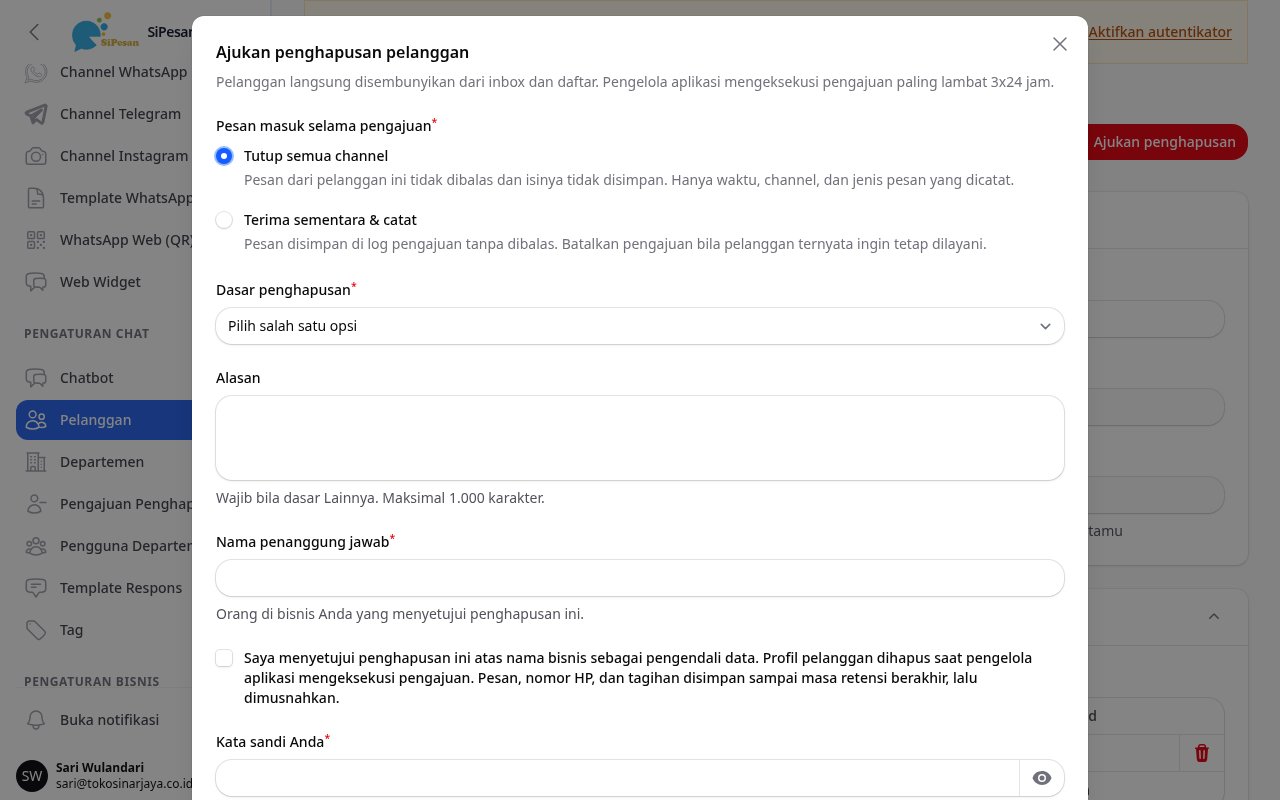
- Select how to treat Incoming messages during the request. The default option is Close all channels.
- Close all channels: messages from this customer are not answered, and their content is not stored. Only the time, channel, and message type are recorded.
- Accept temporarily & log: messages are stored in the request log without a reply. Select this option if the customer may change their mind.
- Select the Basis for deletion: Customer request, Customer withdrew consent, Data no longer needed, or Other.
- Enter the Reason. This field is required if you select Other, and allows up to 1,000 characters.
- Enter the Responsible person, who is the person in your business who approves this deletion, for example "Budi Santoso, Manajer Operasional".
- Select the consent statement, then enter Your password.
- Click Request deletion. The request appears in the Deletion Requests menu with the status Awaiting execution.
A request that you submit already counts as approved by your business. There is no other approval step in your menus.
As soon as you submit the request, the app immediately:
- hides the customer from the inbox and from the customer list,
- closes the customer's active chats,
- cancels scheduled broadcasts to that customer that have not yet deducted balance.
Note that the Request deletion button appears only for customers who already have conversation, broadcast, or billing history. For a customer without history, the edit page shows instructions to contact the platform operator.
Track deletion requests
Open Chat Settings > Deletion Requests to see all requests and their status.
| Status | Meaning |
|---|---|
| Awaiting execution | The request was received and is waiting for the platform operator to execute it. |
| On hold by the platform operator | The platform operator has postponed the execution, for example because a dispute is in progress. |
| Withdrawn | An Admin withdrew the request. The customer is served as usual again. |
| Executed | The customer profile is deleted. Audit data is kept until the date in the Retained until column. |
| Destroyed | The retention period has ended, and the remaining customer data is permanently deleted. |
The platform operator executes requests, with a target of completion within 3×24 hours after the request is submitted.
Withdraw a request
An Admin can still withdraw a request with the status Awaiting execution or On hold by the platform operator.
- Open Chat Settings > Deletion Requests, then open the request.
- Click Withdraw request, then confirm.
- The customer appears again in the inbox and the customer list, and can be served again.
If the request used the Accept temporarily & log option, the messages that came in during the request move to the customer's conversation when the request is withdrawn. A request that has been executed cannot be withdrawn.
What happens to customer data
When the request is executed, the customer's name, email, username, custom fields, and other profile data are deleted. A deleted profile cannot be restored.
The customer's chat messages, phone number, and billing data are not deleted immediately. This data is kept as audit evidence until the retention period ends, then it is permanently deleted together with the customer's media files. The default retention period is 120 months, and the platform operator sets it for your business. The end date appears in the Retained until column.
Customers who contact you again
While the request is still in progress, messages from that customer are not answered and do not reach the inbox. Messages are recorded according to the Incoming messages during the request option.
After the request is executed, a customer who sends a message again is recorded as a new customer. Their old name and chat history are not connected to the new data.
An explanation of chats from customers in a deletion request is in the Chat topic.