Getting started
This page introduces the menus in your business dashboard and the setup order to follow before you can handle your first chat. Each step links to the topic that explains it in detail.
The menus you see depend on your role and on the features in your plan. The full list of menus per role is in the User roles topic.
Menu overview
The menus on the left side of the dashboard are arranged in several groups. Some menus stand alone without a group.
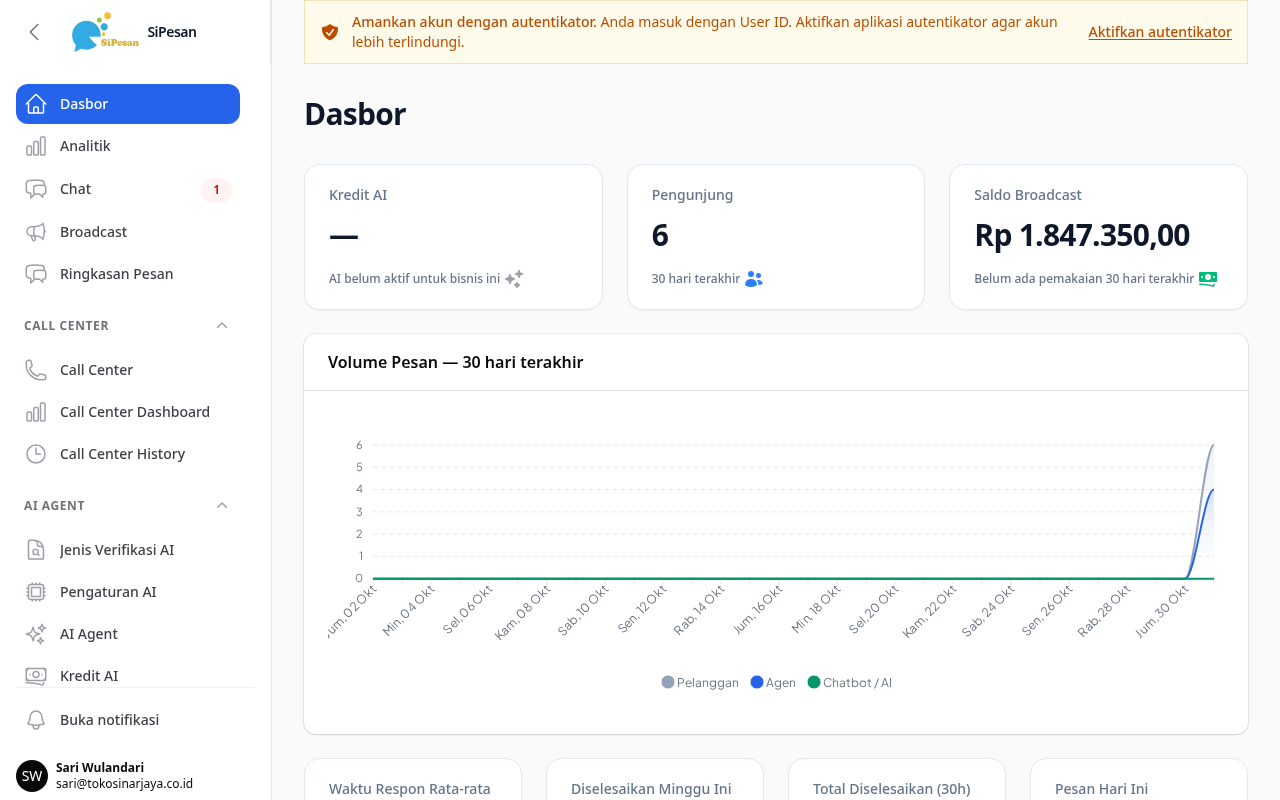

| Group | Menus in the group | Purpose |
|---|---|---|
| No group | Dashboard, Chat, Analytics, Broadcasts, Message Summary | A summary of chat and message numbers, the chat inbox, analytics, broadcasts to many customers, and the status of messages sent through the API. |
| Call Center | Three Call Center pages | Calls, call history, and the call dashboard, if the Call Center feature is active in your plan. |
| AI Agent | AI Agents, AI Settings, AI Credits, Knowledge Base, AI Connectors, AI Flows, and other AI menus | Set up the AI that replies to customers, if the AI feature is active in your plan. |
| Channel Integration | WhatsApp Business, WhatsApp Channels, WhatsApp Web (QR), Telegram Channels, Instagram Channels, Web Widget, WhatsApp Templates | Connect the channels where customers send messages, and create WhatsApp templates. |
| Chat Settings | Departments, Department Users, Customers, Deletion Requests, Template Responses, Tags, Chatbots | Set up the teams that receive chats, customer data, and reply tools. |
| Business Settings | Users, Reports, Download Center, Balance & Billing, Two-Factor Authentication | Manage team accounts, reports and export files, balance, and account security. |
| Developers | API Access, API CST, H2H CGW API Setup, Webhooks | Credentials and webhooks to connect your systems through the API. |
| Help | Help, API Playground, PDP Compliance | This guide, a tool to test sending messages through the API, and PDP compliance evidence. |
First setup order
An Admin does the first setup, because the channel menus and the Users menu are open only to Admins. A Supervisor can help with the department step.
- Connect a channel.
- Create a department.
- Add users, then add them to a department.
- Receive your first chat.
Step 1: Connect a channel
A channel is the way customers contact you, for example a WhatsApp number or a Telegram bot.
- Open the Channel Integration menu group.
- Select the menu of the channel you want to connect, for example Telegram Channels.
- Follow the steps for that channel in the Channels topic. WhatsApp Business API starts from the WhatsApp Business menu, and Instagram connects when you sign in to your Instagram Business account.
- Complete the steps. The new channel appears in the list in that channel's menu.
Note that the save button in the channel creation form is labeled Create. The menu for a channel appears only if that channel's feature is active in your plan.
Step 2: Create a department
A department groups the agents who receive chats. A new chat goes to the department linked to the channel, or to the Default department.
- Open Chat Settings > Departments.
- Click New Department.
- Enter a Name, for example "Layanan Pelanggan".
- Leave Default on for your first department.
- Click Create. The new department appears in the list.
The Default department receives chats from channels that are not linked to any department. If no Default department is active, the chat goes to one of the active departments. To route a channel's chats to a specific department, link that department in the channel form. Business hours, automatic messages, and auto-close are in the Departments topic.
Step 3: Add users
Each team member needs their own account. Only Admins can add users.
- Open Business Settings > Users.
- Click New User.
- Enter the Name and Email, for example "Rina Wulandari" and rina@tokosinarjaya.co.id.
- Enter the User ID if the field appears. The field appears only in businesses that use a User ID to sign in.
- Enter the Password if the field appears, or leave it empty so that the system creates a random password. The field appears only in businesses that use a User ID instead of an email code.
- Select a Role: Admin, Supervisor, or Agent.
- Make sure Active is on.
- Click Create. The new user appears in the list.
A new user receives a temporary password in the invitation email. In businesses that use a User ID instead of an email code, the temporary password is shown to the Admin, who shares it directly. The user must change that password at the first sign-in, as described in the Account and security topic.
The differences between the Admin, Supervisor, and Agent permissions are described in the User roles topic.
Add users to a department
A new user receives chats automatically after becoming a member of a department.
- Open Chat Settings > Department Users.
- Click New Department User.
- Select the Department and the User. The Role field shows the role of that user and needs no input.
- Make sure Can Receive Chats and Active are on.
- Click Create. The user appears in the Department Users list.
Max Concurrent Chats is -1 by default, which means no limit. How to change it is in the Departments topic.
Step 4: Receive your first chat
The system assigns new chats only to agents who are online, unless the department is set to assign chats to offline agents.
- Sign in with an agent account.
- Open Chat.
- Click the status indicator next to the Conversations title, then select Available.
- Send a test message to your channel from another number or account.
- Look at the chat list. A chat assigned to you appears in the Open > Mine tab. A chat that has no agent yet appears in Open > Unassigned.
Note that if the channel uses a chatbot or an AI Agent, the bot handles the chat first and the chat appears in the Bot tab. How to reply to, take over, and close a chat is in the Chat topic.