Templates and broadcasts
This topic explains how to create WhatsApp templates, send a broadcast to many customers at once, and track the status of each message in Message Summary.
A broadcast in the Broadcasts menu uses the WhatsApp Business API and a template that Meta has approved. Each message that is sent is charged to your business balance. Broadcasts through WhatsApp Web (QR) use a different path and are described at the end.
Who can use these menus
| Menu | Admin | Supervisor | Agent |
|---|---|---|---|
| Channel Integration > WhatsApp Templates | Yes | Yes | No |
| Broadcasts | Yes | Yes | Yes, through approval |
| Message Summary | Yes | Yes | Yes |
Note the following:
- The WhatsApp Templates menu appears only if the WhatsApp feature is active for your business.
- The Broadcasts menu appears only if the WhatsApp broadcast feature is active. The platform operator can also limit this menu to one specific user in your business. Other users do not see the menu.
- Agents can create broadcasts and see their results, but a broadcast from an Agent is sent only after an Admin or a Supervisor approves it. How to do this is described in the Broadcasts by Agents section below. Agents do not see Estimated Cost or the broadcast cost.
- The Message Summary menu appears only if the API message sending feature is active, and all roles can open it. The Cost column is shown only to Admins and Supervisors.
- Admins and Supervisors can delete a broadcast from the broadcast edit page. Bulk delete from the list is for Admins only.
WhatsApp templates
In the Channel Integration > WhatsApp Templates menu, you create message templates and submit them to Meta for review. A broadcast can use only templates that Meta has approved.
Create a template
- Open Channel Integration > WhatsApp Templates.
- Click the create button in the top right.
- Select the WABA, which is the WhatsApp Business account that will use this template.
- Enter a Template Name, for example
promo_gajian_oktober. The name can contain only lowercase letters, numbers, and underscores. Spaces are changed to underscores automatically. - Select a Category: Marketing, Utility, or Authentication. The default is Utility.
- Fill in the message parts for the category: the language (default Indonesian), header, message body, footer, and buttons.
- Click Create. The template gets the Processing status and is then submitted to Meta in the background.
Also:
- The message body is at most 1,024 characters, the text header and the footer are at most 60 characters each, and the button text is at most 25 characters.
- You cannot change the name, the WABA, or the category after the template is saved. The template list also has no edit button. If the template content must change, create a new template.
Template categories
| Category | Used for |
|---|---|
| Marketing | Promotions, offers, and product announcements. |
| Utility | Transaction information, for example an order confirmation or a bill reminder. |
| Authentication | One-time verification codes (OTP). |
The price per broadcast message follows the template category.
Template statuses
The status is updated from Meta. If a template is rejected, the reason from Meta is shown below the status.
| Status | Meaning |
|---|---|
| Processing | The template is being submitted to Meta. |
| Pending | Meta is reviewing the template. |
| Approved | The template is approved and can be used for broadcasts. |
| Rejected | Meta rejected the template. Read the reason, then create a new, corrected template. |
| Paused, Disabled | Meta paused or disabled the template. |
| Submission Failed, Submission Error | The submission to Meta failed. |
| Deleted at Meta | The template has been deleted at Meta. |
Click Sync from Meta to get all templates from Meta and update their statuses in the list. A template that never reached Meta, for example because the submission failed, has a Submit to Meta button to submit it again.
Delete a template
- Open Channel Integration > WhatsApp Templates.
- Click the actions menu on the template row, then click Delete.
- Read the text in the confirmation window, then confirm.
Note the following:
- You cannot delete a template while a broadcast with the Draft, Scheduled, or Sending status still uses it. The application shows the name of that broadcast. Finish or cancel that broadcast first.
- A template that is not at Meta yet, or that already has the Deleted at Meta status, is only removed from the list.
- A template with the Disabled status has no delete button.
- According to Meta, the name of an approved template cannot be used again for 30 days after it is deleted, and Meta keeps trying to deliver unsent messages for up to 30 days.
You can also select several templates at once and delete them. This process runs in the background, templates that an active broadcast still uses are skipped, and the result is sent as a notification.
WhatsApp Business API broadcasts
In the Broadcasts menu, you send one approved template to many customer numbers, now or at a scheduled time.
Create a broadcast
- Open Broadcasts, then click the create button.
- Enter the broadcast name in Name.
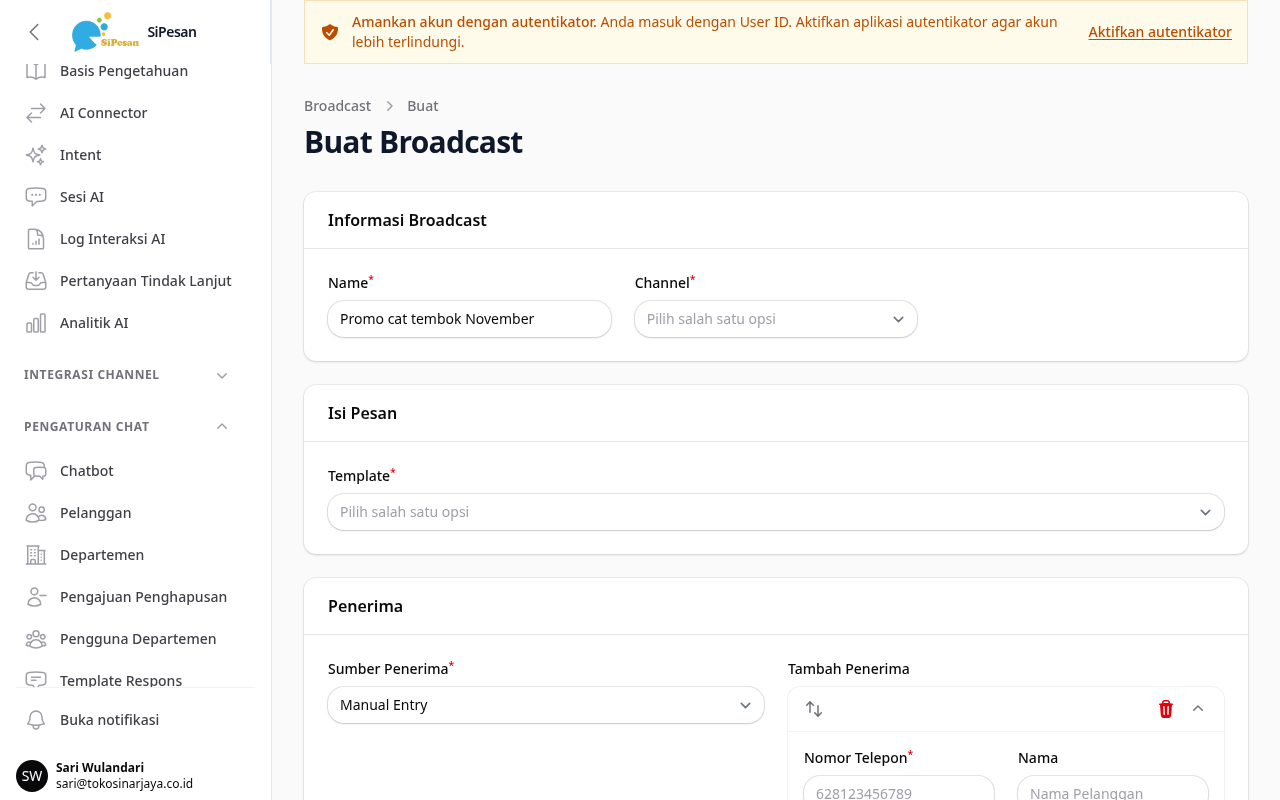
- Select a Channel. The options are the active WhatsApp Business API channels.
- If you are a member of more than one department, select the Department that this broadcast represents. This choice is stored for reports.
- Select a Template. The options are only templates with the Approved status from the WhatsApp Business account of that channel.
- If the template has variables, fill in Template Variables (Global). These values become the default values for all recipients.
- Select a Recipients Source, then add the recipients (see the next section).
- To send later, fill in Schedule Send Time. The time follows your business timezone, which is set in the business profile. Leave it empty to send right away.
- Click Create. If you are an Admin or a Supervisor, a scheduled broadcast appears with the Scheduled status, and a broadcast without a schedule goes straight into the sending queue. If you are an Agent, the broadcast is saved as a Draft and must be submitted for approval.
Choose recipients
| Recipients Source | How to fill it in |
|---|---|
| Manual Entry (default) | Click Add Recipients, enter the Phone Number in the 628 format, for example 6281234567890, and the Name if you have it. |
| Excel Upload | Click Download Example File, fill in the file, then upload it in Excel File. The file must be xls or xlsx, at most 5 MB. The required columns follow the template variables. |
| From Tag | Select one or more tags in Select Tags. The broadcast is sent to all customers that have those tags. |
After the broadcast is saved, the application shows how many recipients were added and how many were skipped.
Send a broadcast
- A broadcast without a schedule is sent right after you click Create. If it cannot be sent yet, for example because the balance is too low, the broadcast is saved as a Draft and the application shows the reason. Fix the cause, then click Send.
- A scheduled broadcast is sent automatically when the scheduled time arrives. The application checks schedules every minute.
- A Draft broadcast has not been sent. Click Send on the broadcast row, then confirm. The notification "Broadcast queued for sending" appears if this succeeds. A Scheduled broadcast also has a Send button to send it now without waiting for the schedule.
When a broadcast starts sending, the application checks that your business subscription is still active, the broadcast has recipients, and the balance covers the Estimated Cost. If one of these conditions is not met, the broadcast gets the Failed status and the reason is shown.
You can still edit a broadcast with the Draft or Scheduled status. If an Admin or a Supervisor sets a schedule on a Draft broadcast, its status becomes Scheduled. Clearing the schedule of a Scheduled broadcast returns it to Draft. A broadcast that an Agent edits stays a Draft. Editing a broadcast never sends it.
Broadcasts by Agents
Agents cannot send broadcasts themselves. A broadcast that an Agent creates always has the Draft status until it is approved.
- The Agent creates a broadcast with the steps above. The Agent can set a schedule. That schedule is used after the broadcast is approved.
- The Agent opens the broadcast, then clicks Submit for Approval. This button appears when the broadcast has recipients.
- An Admin or a Supervisor opens the broadcast, then clicks Approve & Send or Reject. A rejection requires a Rejection Reason, which the Agent can read.
After approval, a broadcast without a schedule, or whose scheduled time has passed, is sent right away. A broadcast with a schedule in the future gets the Scheduled status and is sent automatically when the scheduled time arrives. The Agent can fix a rejected broadcast and submit it again.
Agents can track the status and the number of messages sent, read, and failed, but they do not see the cost.
Cost and balance
Estimated Cost is the number of recipients multiplied by the price per message for the template category. It appears after recipients are added. When sending starts, the balance is deducted for each waiting recipient. If the balance runs out during that process, the next recipients are marked Failed. If sending to a recipient fails, the deduction for that recipient is returned to the balance.
The balance is explained in the Balance and subscription topic.
Cancel a broadcast
- Open Broadcasts.
- Click Cancel on a broadcast with the Draft or Scheduled status, then confirm.
A broadcast with the Draft or Scheduled status has not been charged to the balance yet, so cancelling it does not change your balance. You cannot cancel a broadcast that already has the Sending status, because the balance for all its recipients was deducted when sending started.
Broadcast statuses
| Status | Meaning |
|---|---|
| Draft | Saved, not sent yet. |
| Scheduled | Waiting for the scheduled time. |
| Sending | Being sent to recipients. |
| Completed | All recipients have been processed. |
| Failed | The broadcast could not be sent. The reason is shown on the broadcast. |
| Cancelled | Cancelled. |
Message Summary
In the Message Summary menu, you see the status of each message sent to each recipient. This menu is read-only. You cannot add, edit, or delete data.
- Open Message Summary.
- Use the status, channel type, or broadcast filter to narrow the list.
- Click View Message to read the content of the message sent to that recipient.
The Error column shows the reason if a message failed. The Cost column shows the cost of that message and is shown only to Admins and Supervisors.
| Recipient status | Meaning |
|---|---|
| Pending | Not processed yet. |
| Sending | Being sent. |
| Sent | Sent to WhatsApp. |
| Delivered | Reached the recipient's phone. |
| Read | Read by the recipient. |
| Failed | Not sent, for example because the balance was too low. |
| Undelivered | Sent but did not reach the recipient. |
| Cancelled | The broadcast was cancelled. |
Message Summary exports appear in Business Settings > Download Center with the type "Message Summary". See the Reports and exports topic.
WhatsApp Web (QR) broadcasts
You cannot select a WhatsApp Web channel in the Broadcasts menu form. A broadcast through WhatsApp Web is sent with the API, is text only, is not charged to the balance, and is sent in stages with a pause between messages so that WhatsApp does not block your number. Customers who reply STOP or BERHENTI do not receive the next broadcasts.
How to send, the sending limits, and the status per recipient are described in the WhatsApp Web (QR) Broadcast topic.