Departments
In the Chat Settings > Departments menu, you group agents, set business hours, and choose the automatic messages that are sent to customers. One department handles each incoming chat, and the agents in that department receive the chat.
Admins and Supervisors can open the Departments and Department Users menus. Agents do not see these two menus. Only Admins can delete a department.
Create a department
- Open Chat Settings > Departments.
- Click New Department.
- Enter a Name, for example "Layanan Pelanggan" or "Penjualan".
- Select the department Color.
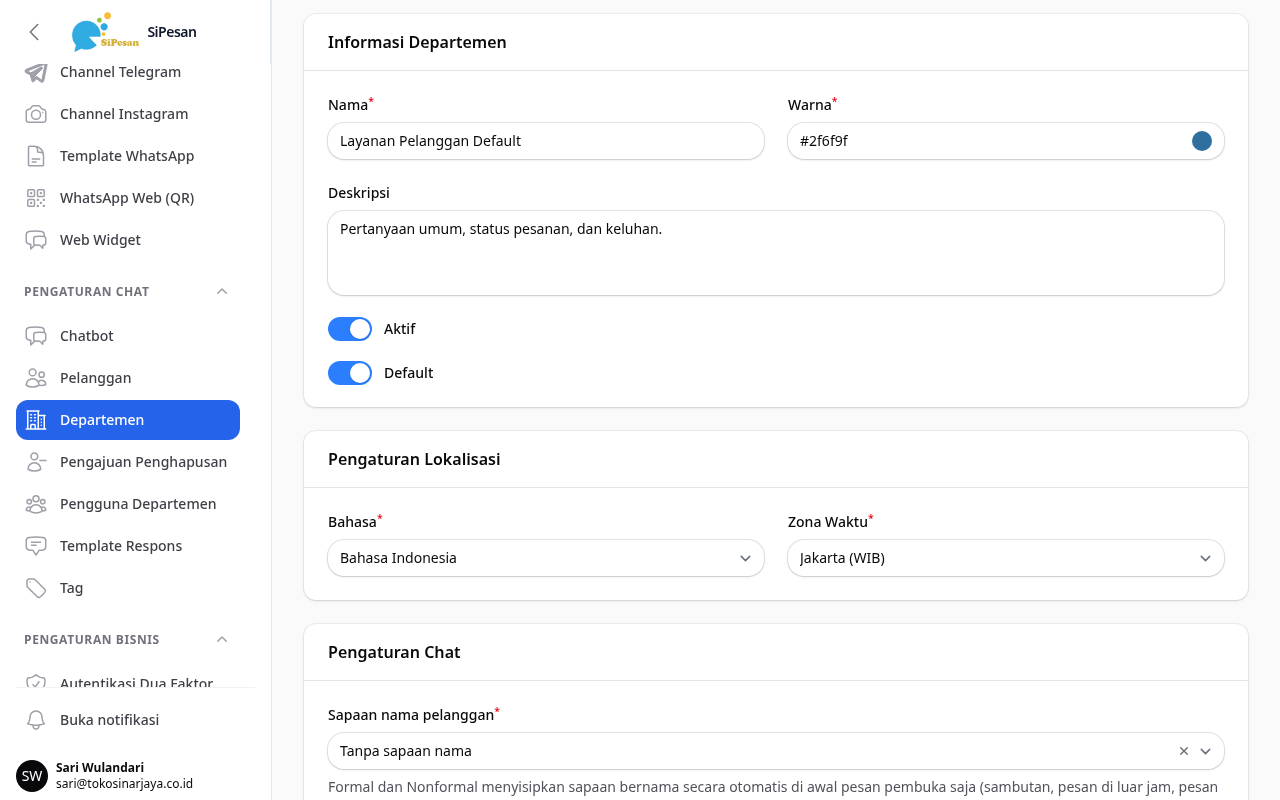
- Check Default. This toggle is on by default only for the first department of your business. Turn it on if this department receives chats from channels that are not linked to any department. This department then replaces the old Default.
- Select the Language and Timezone in the Localization Settings section.
- Set up automatic messages, business hours, and auto-close as described below.
- Click Create. The new department appears in the list.
Note that only one department can be the Default. When you save a department with the Default mark, the Default mark is removed from the other department.
Add department members
Department members are the users who receive the chats of that department. One user can be a member of several departments.
- Open Chat Settings > Department Users.
- Click New Department User.
- Select the Department and the User. The Role field shows the role of that user and needs no input.
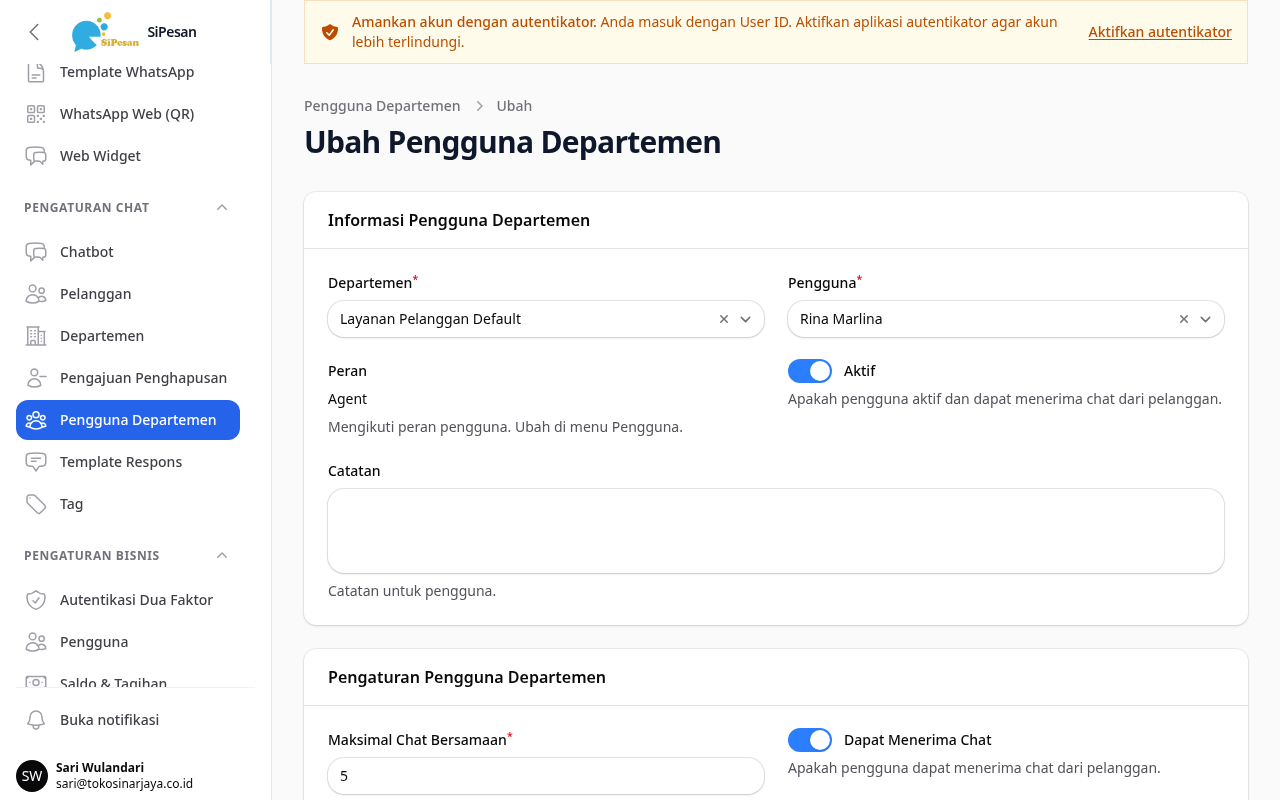
- Enter Max Concurrent Chats. Leave it at -1 if you do not want a limit.
- Make sure Can Receive Chats and Active are on.
- Click Create. The user now receives chats from this department.
Department roles
The role of a department member is the same as the role of their user account: Admin, Supervisor, or Agent. The Department User form shows this role, and you cannot change it there. The same role determines which menus and actions the member can open.
To change the role of a member, an Admin opens Business Settings > Users and changes the Role of that user. The change applies in all of the user's departments. Each role is explained in the User roles topic.
Stop chats to an agent for a while
Turn off Can Receive Chats on that agent's membership. The agent stays a member of the department, but gets no new chats until you turn it on again.
How chats are assigned to agents
When a new chat comes in, the system selects one agent from the department that handles the chat. An agent can be selected only if all of the following conditions are met:
- The membership is active and Can Receive Chats is on.
- The user account is active.
- The agent's status is online.
From the agents who meet the conditions, the system first selects the agent with the lightest chat load. If several agents have the same load, the system assigns chats in turn (round robin).
A chat that has no agent yet waits in the chat list. The system tries to assign it again every minute.
Assign chats to agents who are offline
In small teams, agents often forget to change their status to online. For such a team, turn on Assign chats even when the agent is not online in the Chat Settings section of the department form. New chats then go directly to department members even if their status is away or offline, and customers do not receive the "no agents available" message.
Max Concurrent Chats
Max Concurrent Chats limits the number of active chats that an agent holds when the system assigns chats. Enter a number from 1 to 50 to set a limit. Enter -1 or 0 if you do not want a limit. The default value is -1 (no limit).
How the limit works:
- The limit is read from the agent's membership in the department that is assigning the chat. If Rina is a member of Penjualan with a limit of 5 and a member of Layanan Pelanggan with no limit, chats for Penjualan use the limit of 5.
- The count includes all of the agent's active chats in your business, from any department.
- The system skips agents who have reached their limit.
- If all agents are full, the chat waits until an agent has fewer chats.
Note that if two chats come in at almost the same time, an agent can hold one chat more than the limit for a short time. The next chat skips that agent.
Set department business hours
Business hours determine which message a customer receives when starting a chat: the welcome message during business hours, or the offline message outside business hours.
- Open the department form, then scroll to the Business Hours section.
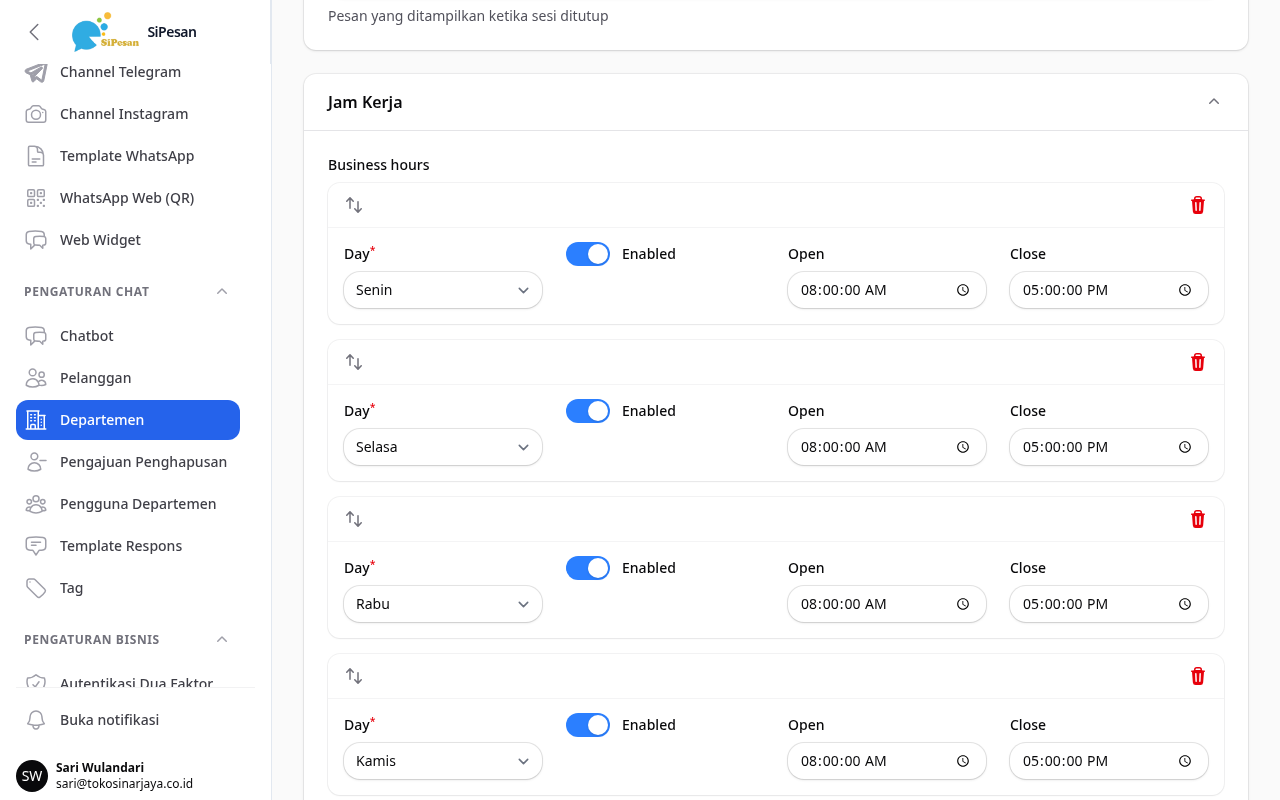
- Turn on Enabled on working days and turn it off on days off.
- Enter Open and Close for each working day.
- Make sure the Timezone in the Localization Settings section matches your team's location, for example Asia/Jakarta for WIB.
- Click Save changes.
The default business hours are Monday to Friday from 09:00 to 17:00. Saturday and Sunday are closed.
Note the following:
- The closing time must be later than the opening time on the same day. A schedule that crosses midnight, for example 22:00 to 02:00, is not supported yet. Split such a schedule into two: 22:00 to 23:59 on the first day and 00:00 to 02:00 on the next day.
- A day whose opening time or closing time is empty counts as closed.
Set up automatic messages
A department can send five automatic messages to customers. Each message has its own toggle in the Chat Settings section of the department form. If a toggle is off, that message is not sent to customers.
| Message | Toggle | When it is sent | Default |
|---|---|---|---|
| Welcome Message | Send welcome message to the customer | A new chat comes in during business hours | On |
| Offline Message | Send offline message to the customer | A new chat comes in outside business hours | On |
| No Agents Available Message | Send "no agents available" message to the customer | No agent can be assigned | On |
| Connected to Agent Message | Send "connected to agent" message to the customer | The chat gets an agent | Off |
| Goodbye Message | Send goodbye message to the customer | The chat is closed | On |
To change the message text:
- Open Chat Settings > Departments, then click the department you want to change.
- Turn on the toggle of the message you want to send.
- Change the message text in the field below that toggle.
- Click Save changes.
Note that on the WhatsApp Business API channel, Meta can charge per message for automatic messages that reach customers, if Meta's service billing already applies to your business. Turn off the messages you do not need to save costs.
Also:
- The welcome message is not sent if a chatbot or AI is handling the chat, or if the customer is being asked to choose a department.
- The offline message is sent at most once every 5 minutes for one chat.
- The welcome message is still sent when the channel chatbot is turned off. To stop all automatic replies, turn off the message toggles in the department. The explanation is in the Channels topic.
- Customers who have no reachable number do not receive automatic messages.
Customer name greeting
The Customer name greeting option adds the customer's name at the start of opening messages, which are the welcome message, the offline message, and the first chatbot message. There are four options:
- No name greeting (default).
- Formal: Mr/Ms Name, for example "Selamat siang Bapak/Ibu Andi".
- Casual: first name, for example "Kak Andi".
- Placeholder (I write it in the text myself): you write where the name goes in the message text with
{nama},{nama|Pelanggan}, or{salam_waktu}.
The name comes from the customer's WhatsApp profile. If the name is empty, the message is sent without a name. With the Placeholder option, {nama|Pelanggan} is replaced with the word "Pelanggan" when the name is empty.
Set up auto-close
Auto-close closes a chat that has had no activity for a set time.
- Open the department form, then scroll to the Auto-close Settings section.
- Enter a number from 5 to 1440 in Auto-close Timeout (Minutes). The default value is 1440 minutes (24 hours).
- Turn on Send auto-close notice to the customer if the customer needs to be told, then enter the Auto-close Message.
- Click Save changes.
To turn off auto-close, empty the Auto-close Timeout (Minutes) field.
Note that if the notice is off, the customer receives no message at all. Agents still see a note in the chat that the chat was closed automatically. If you turn on the notice on the WhatsApp Business API channel, Meta can charge for it per message, the same as for other automatic messages.
Departments for channels
You can link each channel (WhatsApp, Telegram, Instagram, Web Widget) to one or more departments. You set the link in the channel form, as described in the Channels topic.
The system chooses the department of a new chat in this order:
- If the channel is linked to one active department, the chat goes to that department.
- If the channel is linked to several active departments, the customer is asked to choose a department.
- If the channel is not linked to any active department, the chat goes to the active Default department.
- If no Default department is active, the chat goes to one of the active departments.
An inactive department is never selected. To make sure every chat has a clear destination, set one department as the Default.
The customer chooses a department
If the channel is linked to several departments, the customer receives a list of departments when starting a chat. The customer can press a button, type the number of the department in the list, or type the department name. If the answer does not match, the list is sent again.
Channels with a chatbot or AI Agent in full mode
If the channel uses an active chatbot or AI Agent in full mode, the customer is not asked to choose a department when starting a chat. The chat goes to the department linked to the channel if the channel is linked to exactly one active department. In other cases, the chat goes to the Default department, or to one of the active departments if there is no Default.
When the chatbot or AI Agent hands the chat over to an agent, the system chooses the destination department in this order:
- The department set in the chatbot handover step, or the department that the AI Agent chooses. If the channel has linked departments, the AI Agent chooses only from those departments.
- If the chat started in the Default department, or in another active department because there is no Default, the customer is asked to choose a department. This happens only if the channel is linked to several active departments when the chat is handed over to an agent.
- Otherwise, the chat stays in its department.