Balance and subscription
This topic explains the WhatsApp message balance, the subscription period of your business, and AI credits. All three are visible only to Admins.
Who can use these menus
| Menu | Admin | Supervisor | Agent |
|---|---|---|---|
| Business Settings > Balance & Billing | Yes | No | No |
| AI Agent > AI Credits | Yes | No | No |
Note that the AI Credits menu appears only if the AI Agent feature is active for your business. A Supervisor can send broadcasts that are charged to the balance, even though the Supervisor cannot see the balance.
Balance
In the Business Settings > Balance & Billing menu, you see the remaining balance, this month's WhatsApp usage, and the balance transaction history.
- Open Business Settings > Balance & Billing.
- Look at the Balance card in the Balance Overview section. The large number is the balance available for messaging. Total Added and Total Used appear below it.
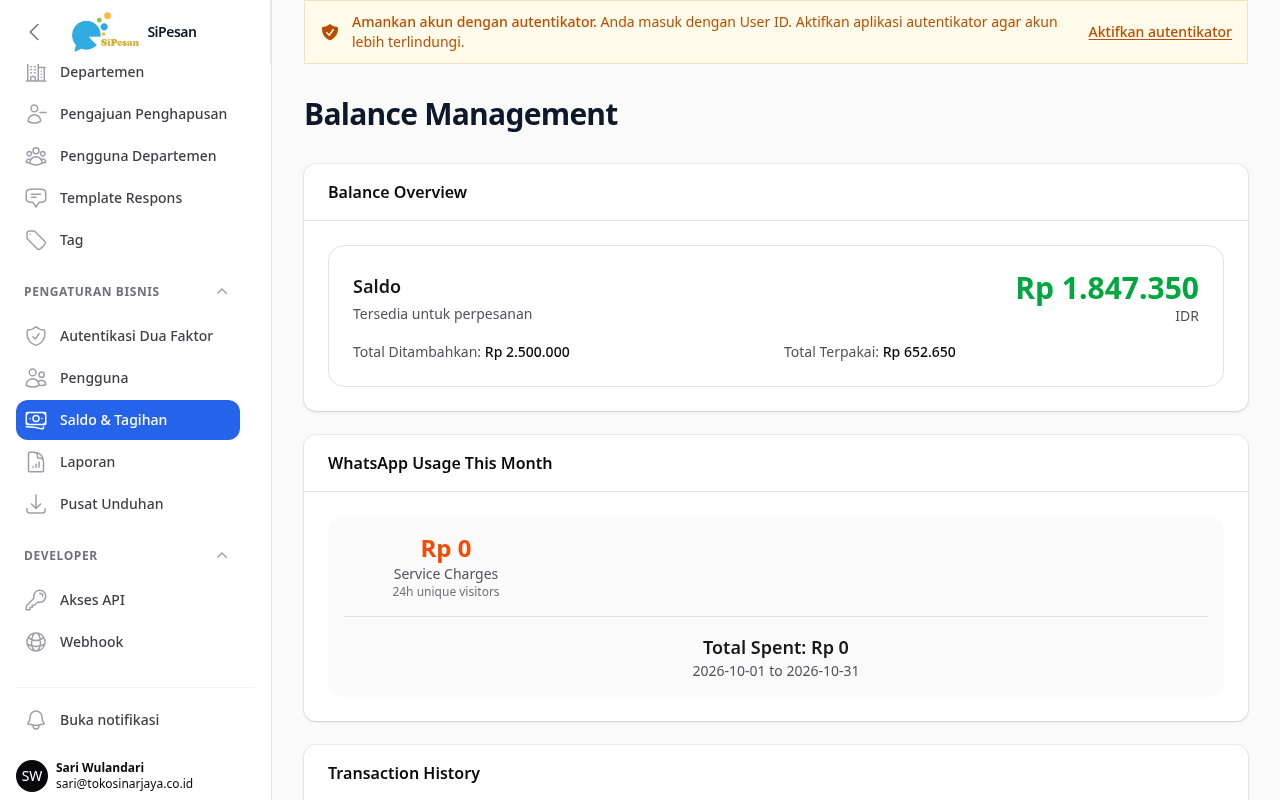
- Look at this month's WhatsApp usage per message category in the WhatsApp Usage This Month section, including service charges.
- Scroll to the Transaction History section to see every balance addition and deduction.
The transaction history shows the date, the type, the transaction (Credit for an addition, Debit for a deduction, Quota Reset), the amount, the reason, and the balance after the transaction.
Add balance
You cannot top up the balance yourself in the application. Contact the support team by the email or WhatsApp listed at the bottom of the Balance & Billing page. After the balance is added, the transaction appears in the history as a Credit.
Messages that are charged to the balance
| Message | When the balance is charged |
|---|---|
| A broadcast in the Broadcasts menu | For each recipient when sending starts. If sending to that recipient fails, the charge is returned to the balance. |
| A WhatsApp Business API template message outside a broadcast | After Meta reports its delivery status, according to the template category. |
| A WhatsApp Business API service message, which is a normal reply inside a conversation | Per message, only if Meta's service billing applies to your business. |
Messages through WhatsApp Web (QR) are not charged to the balance.
If the balance is too low
- A broadcast cannot start sending if the balance is lower than the Estimated Cost. If the balance runs out during sending, the next recipients are marked Failed.
- Template messages are held until the balance is topped up.
- If Meta's service billing applies to your business and the balance cannot cover one service message, all normal messages to customers on WhatsApp Business API channels are held. This includes agent replies, chatbot and AI replies, and automatic messages.
The cost per broadcast is explained in the Templates and broadcasts topic. The WhatsApp Service Charge Report is explained in the Reports and exports topic.
Subscription
The platform operator sets and renews the subscription period of your business. The subscription counts as active until the end of its end date.
After the end date passes and the subscription has not been renewed:
- Agents cannot reply to chats. The application shows the message "Your subscription has expired. Renew to reply to messages."
- Broadcasts cannot be sent.
- Chatbots, AI, and automatic messages do not send replies to customers.
Contact the platform operator to renew the subscription before the end date.
AI credits
In the AI Agent > AI Credits menu, you see how AI Agent usage is billed to your business.
| Billing Mode | Meaning |
|---|---|
| Platform Credits | AI Agent usage is deducted from AI credits provided by the application. |
| Own API Key (BYOK) | Your business uses its own AI provider API key and pays that provider directly. |
| Not set | The billing mode has not been decided yet. |
In the Platform Credits mode, this page shows Credits Remaining, Total Used (this period's quota plus the top-ups used), Total Top-up, and Recent Transactions.
The AI Usage section shows the number of tokens used in the last 30 days. This token count measures usage. It is not a cost.
Request an AI credit top-up
This button appears only in the Platform Credits mode.
- Open AI Agent > AI Credits.
- Click Request Top-up Credits.
- Enter the number of credits. The minimum is 100, and the number must be a multiple of 100. The default is 1,000.
- Check the cost estimate that appears, then add a note if needed.
- Send the request. The request appears on this page as a request in progress.
The credits increase after the platform operator processes your request. On the same page, Admins can also request a change of billing mode.
AI Agent settings are explained in the AI Agent topic.