Reports and exports
In the Business Settings > Reports menu, you create operational and agent performance reports for a date range, then export them to Excel. The Excel file is prepared in the background, and you get it from the Business Settings > Download Center menu.
Who can use these menus
| Action | Admin | Supervisor | Agent |
|---|---|---|---|
| Open Reports and create reports | Yes | Yes | No |
| Create the WhatsApp Service Charge Report | Yes | No | No |
| Open Download Center | Yes | Yes | No |
| Download exports | All exports in your business | All exports in your business | No |
| Delete exports | All exports in your business | Only exports they created | No |
Note that a Supervisor can download exports that an Admin created, including customer data exports. The Reports menu appears only if the analytics feature is active for your business.
Create a report
- Open Business Settings > Reports.
- Select a Report Type.
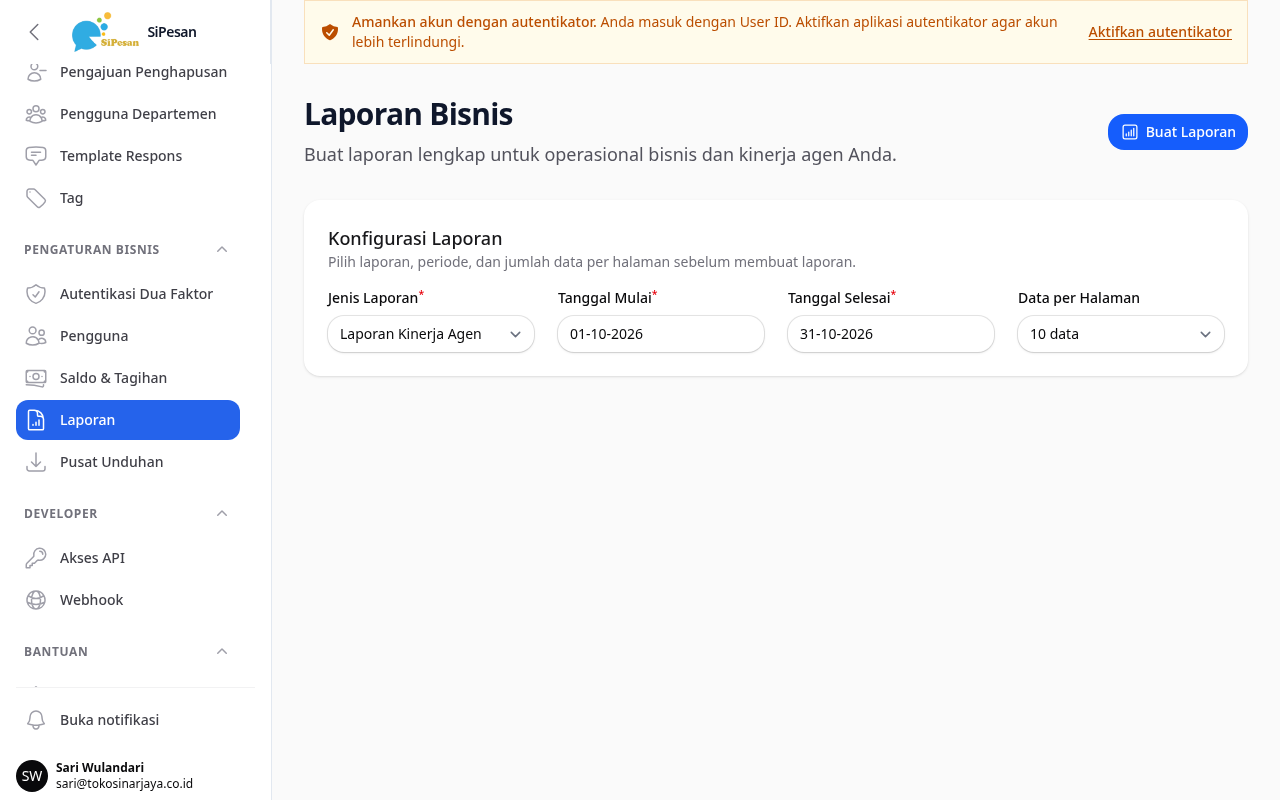
- Fill in the Start Date and the End Date. The dates cannot be later than today, and the End Date cannot be before the Start Date.
- If the Report filters section appears, fill in the filters you need.
- Select Records per Page: 10, 25, 50, or 100 rows.
- Click Generate Report. The result appears as a table below the form.
When the page opens, the default values are the Agent Performance Report, a range from the 1st of this month to today in your business timezone, and 10 rows per page.
Report types
| Report Type | Extra filters |
|---|---|
| Agent Performance Report | None |
| Case/Session Report | None |
| Agent Activity Report | None |
| Topic Report | None |
| Broadcast Summary Report | Recipient number, Sender number, Template, Created by |
| Broadcast Detail Report | Recipient number, Sender number, Template, Created by |
| Bot Performance Report | None |
| API Send Report | Recipient number, Sender number, Template, API key |
| Chat Transcript Report | Handling agent, Customer (phone or BSUID) |
| WhatsApp Service Charge Report | None |
Also:
- The Chat Transcript Report contains the content of every message in the conversation. The Customer filter accepts a number that starts with 08, 62, or +62, or a BSUID. Web widget and Instagram customers who have no phone number cannot be found with this filter yet.
- The WhatsApp Service Charge Report appears only for Admins, and only if Meta's service billing applies to your business.
Date range limits
| Report Type | Longest range |
|---|---|
| Chat Transcript Report | 31 days |
| WhatsApp Service Charge Report | 92 days |
| Other types | No limit |
The range includes both the start date and the end date. For example, 1 October to 31 October 2026 is 31 days and is still accepted for the Chat Transcript Report. If the range is too long, the application shows the message "This report accepts a date range of at most 31 days. Narrow the start or end date." and does not create the report.
Export a report to Excel
After the report is created, two export buttons appear in the top right.
| Button | File content | Type name in Download Center |
|---|---|---|
| Export Excel | The detailed report data. Appears if the report contains data. | Report |
| Export Summary Excel | A summary of the selected report. Not available for the WhatsApp Service Charge Report. | Full Report |
- Create a report with the steps above.
- Click Export Excel or Export Summary Excel.
- Open Business Settings > Download Center to get the file.
Exports are always processed in the background, including small reports. You can leave the page after you request an export. While an export of yours with the same type is still pending or processing, a new export request is rejected.
Download Center
In the Business Settings > Download Center menu, you get the files from report exports, customer data exports, and Message Summary exports. The number next to the menu name shows how many files are ready to download.
| Status | Meaning |
|---|---|
| Pending | The export was requested and is waiting its turn. |
| Processing | The file is being prepared. |
| Ready | The file can be downloaded. |
| Failed | The file could not be created. Read the error text. |
| Expired | The download period has passed. Create a new export. |
Download a file
- Open Business Settings > Download Center.
- Click Download on a row with the Ready status. The file opens in a new tab.
You can download the file for 3 days after it is created. The time is shown in the Expires column.
Retry a failed export
Click Retry on a row with the Failed status. The application creates a new export request with the same choices. If this button does not appear on an old report export, create a new report and export it again.
Delete a file
Click the delete icon on the export row, then confirm. Admins can delete all exports in your business. Supervisors can delete only exports they created.
Customer data exports are explained in the Customers topic, and Message Summary in the Templates and broadcasts topic.