Channels
A channel is the way customers contact your business: WhatsApp, Telegram, Instagram, or a chat widget on your website. You set up all channels in the Channel Integration menu group, and chats from all channels arrive in the same chat list.
Only Admins can open the channel menus. The menu of a channel appears only when the feature for that channel is active for your business.
| Channel | Menu |
|---|---|
| WhatsApp Business API | Channel Integration > WhatsApp Business and Channel Integration > WhatsApp Channels |
| WhatsApp Web (QR) | Channel Integration > WhatsApp Web (QR) |
| Telegram | Channel Integration > Telegram Channels |
| Channel Integration > Instagram Channels | |
| Web Widget | Channel Integration > Web Widget |
Connect WhatsApp Business API
This channel uses an official WhatsApp Business number from Meta. First you connect the WhatsApp Business account (WABA), then you select its number.
- Open Channel Integration > WhatsApp Business.
- Click Connect WABA.
- Enter a name that your team recognizes, then enter the WABA ID from Meta.
- Click Create.
- Copy the Webhook URL and the Webhook Verify Token, then register both in the webhook settings of your Meta app.
- Open Channel Integration > WhatsApp Channels, then click Connect WhatsApp.
- Select the WABA that you just connected.
- Select a number in Available Phone Numbers.
- Enter the Channel Name, for example "CS Toko Sinar Jaya".
- Click Create. The new channel appears in the WhatsApp Channels list.
Note that one number can be used by only one channel. If the WABA list is empty, connect a WABA first in the WhatsApp Business menu. Use the Test button in the WhatsApp Channels list to check the connection.
WhatsApp 24-hour limit
Agents can send plain text messages only if the customer sent a message in the last 24 hours. After 24 hours, plain text messages are rejected, and you need to use a WhatsApp template that Meta has approved.
Note that on this channel, Meta can charge per message for department automatic messages and agent replies that reach customers, if Meta's service billing already applies to your business. The list of automatic messages and how to turn them off are in the Departments topic.
Connect WhatsApp Web (QR)
This channel links a regular WhatsApp number by scanning a QR code, the same way you open WhatsApp Web on a computer. This channel is unofficial and is not the WhatsApp Business API.
- Open Channel Integration > WhatsApp Web (QR).
- Click Add Channel.
- Enter the Channel Name, for example "CS Toko Sinar Jaya".
- Enter the Daily Message Limit. A value of 200 or less reduces the risk that WhatsApp blocks the number.
- Turn on Auto Reconnect so that the system tries to reconnect when the connection drops.
- Click Create.
- Open WhatsApp on your phone, then scan the QR code in the Connection Status section.
After you scan the QR code, the number is connected, and chats to that number start to arrive in the chat list. How to send broadcasts through this channel is described in the WhatsApp Web (QR) Broadcast topic.
Connect Telegram
You need a Telegram bot. Create the bot with @BotFather in the Telegram app, then save the token that it gives you.
- Open Channel Integration > Telegram Channels.
- Click Connect Telegram.
- Enter the Channel Name.
- Enter the Bot Username without the @ sign, for example
tokosinarjaya_bot. - Paste the Bot Token from @BotFather. The format is digits, a colon, then letters.
- Click Create.
- Click Test Bot in the channel list to check the connection.
Note that a saved token is not shown again. When you edit the channel, leave Bot Token empty if you do not want to replace it.
Connect Instagram
This channel receives direct messages from an Instagram Business account.
- Open Channel Integration > Instagram Channels.
- Click Connect Instagram.
- Enter the Channel Name.
- Follow the sign-in process for your Instagram Business account and grant the permissions it requests.
Use Renew if the connection has problems, and Disconnect to remove the account. Older channels that still use Facebook Login must be connected again through Instagram Business Login.
Instagram 7-day limit
Agents can reply to Instagram messages while the customer's last message came in less than 7 days ago. From 7 days on, the agent's reply is not sent and is marked as failed. The customer must send a message again before an agent can reply.
Install the Web Widget
The Web Widget shows a chat button on your website. Website visitors can chat with an agent directly.
- Open Channel Integration > Web Widget.
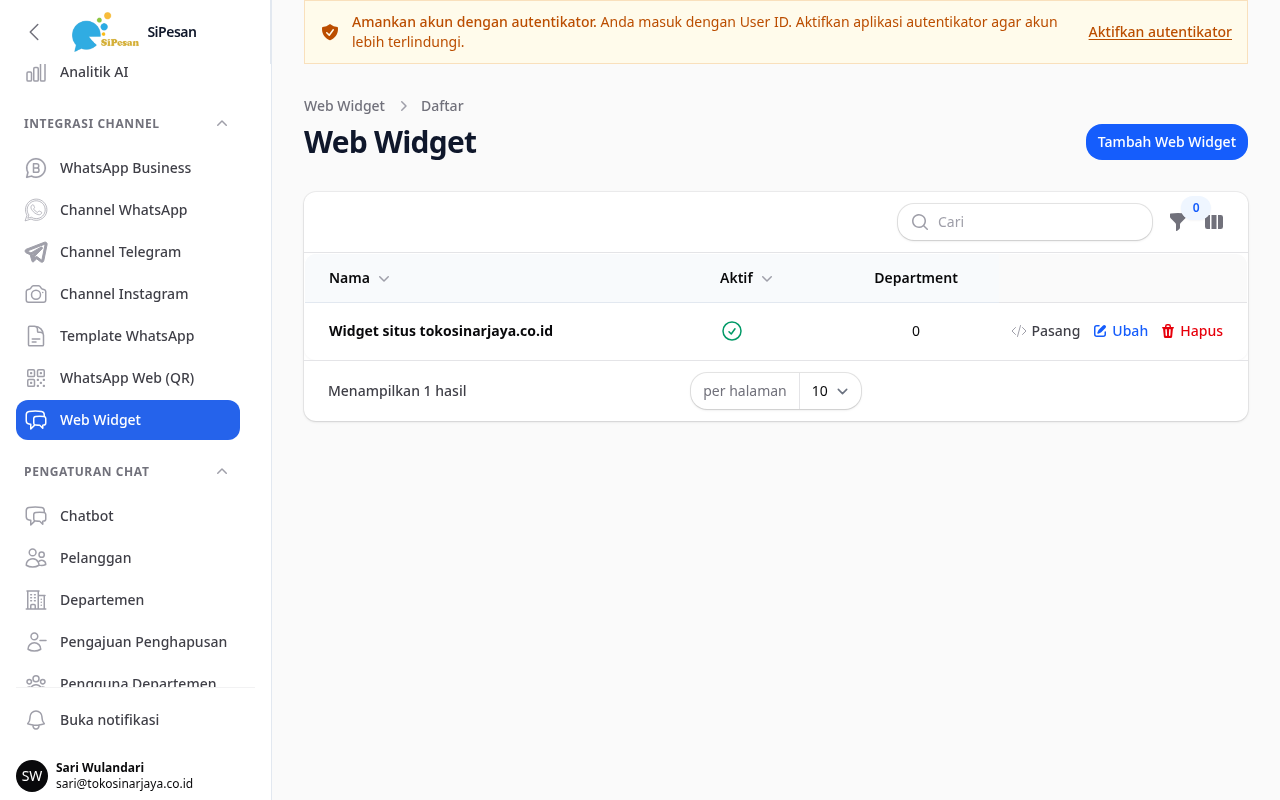
- Create a new widget, then enter the Name in the General section. Only your team sees this name.
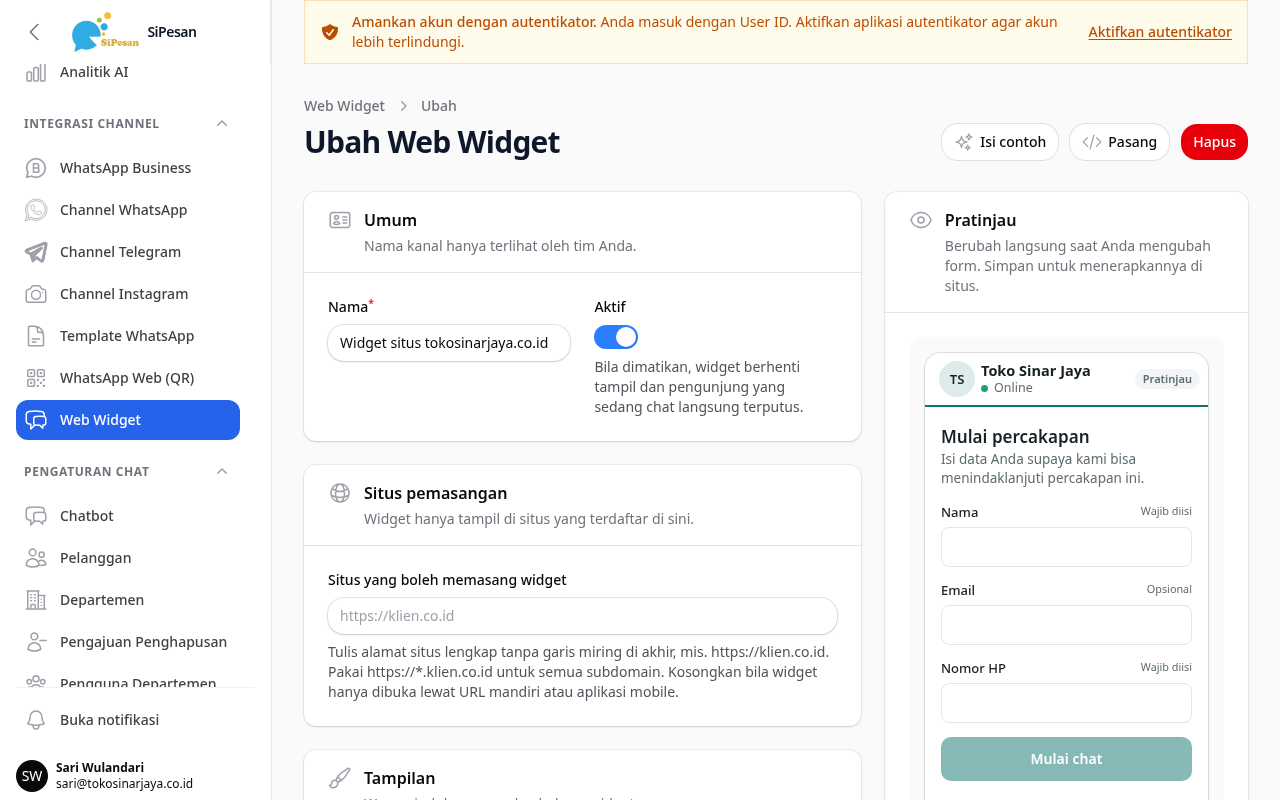
- In the Installation sites section, enter the full site address without a trailing slash, for example
https://tokosinarjaya.co.id. Writehttps://*.tokosinarjaya.co.idfor all subdomains. - Click Create.
- Open the widget, then copy the code in the Install on your website section.
- Paste the code before the
</body>tag on every page that should show the widget.
Note that while the site list is empty, the browser blocks the widget on every site. If you turn off Active, the widget stops showing, and visitors who are in a chat are disconnected immediately.
Also:
- You set the widget home screen (the main title, the chat button text, and the menu sections) in the widget form. The preview changes as soon as you change the form, and the changes apply on your site after you save.
- For Android or iOS apps, the Mobile app section has the code to load the widget in a WebView.
Link departments to a channel
Each channel has a department field in its form. This field determines which departments receive chats from that channel.
- Open the channel menu, then click the channel you want to set up.
- Select the departments in the department field. The label differs per channel: Available Departments (WhatsApp, Telegram, and Instagram) or Department (WhatsApp Web and Web Widget).
- Click Save changes.
The result:
- One department selected: chats from this channel go to that department.
- Several departments selected: the customer is asked to choose a department when starting a chat.
- No department selected: chats go to the Default department. If no Default department is active, chats go to one of the active departments.
Note that if the channel uses an active chatbot or AI Agent in full mode, the customer is not asked to choose a department when starting a chat. The chat goes to the linked department if the channel is linked to exactly one active department, and to the Default department (or another active department if there is no Default) in other cases. For a chat that started in the Default department or in that replacement department, the customer is asked to choose a department when the chat is handed over to an agent. This happens if the channel is linked to several active departments at that time and the chatbot or AI Agent handover step has not set a department. The explanation is in the Departments topic.
For Telegram channels, you can also link a department to several channels at once with the Assign Departments bulk action in the channel list. How to choose the Default department is described in the Departments topic.
Set up the chatbot and AI per channel
You create chatbots in the Chat Settings > Chatbots menu. This menu is for Admins only and appears only if the chatbot feature is active for your business. There, you build an automatic conversation flow from steps, which are questions, statements, actions, or handovers to an agent. For freer, more flexible answers, see the AI Flow and AI Agent topics.
The form of each channel has three automation settings:
- Assigned Chatbot (labeled Chatbot in WhatsApp Web and Web Widget): a chatbot for this channel only. Leave it empty to use the business's global chatbot.
- AI Agent: an AI Agent for this channel only. Leave it empty to use the business's default AI settings.
- Disable chatbot (straight to human agents) and Disable AI (human agents only): two separate switches that turn off the chatbot and the AI on this channel.
What happens when the channel chatbot is turned off
When Disable chatbot is on, the channel uses no chatbot at all, including the business's global chatbot. New chats go directly to agent assignment.
Note the following:
- This switch does not turn off department automatic messages. The welcome message (or the offline message outside business hours) starts to be sent on new chats instead, because a chatbot no longer handles the chat. The exception: if AI Agent in full mode is active on this channel, the AI handles the chat and the welcome message is not sent. If you do not want customers to receive any automatic reply, also turn off the message toggles in the linked department. How to do this is in the Departments topic.
- This switch does not turn off the AI. Use Disable AI for that.
- A chat that the chatbot is handling when you turn on the switch is still finished by that chatbot. The new rule applies to the next chats.
When Disable AI is on, the channel does not use AI at all. The AI Agent settings are described in the AI Agent topic.