User roles
Each user in your business has one role: Admin, Supervisor, or Agent. The role determines which menus the user can open and which actions the user can take. An Admin sets the role of each user in the Business Settings > Users menu.
On screen, the role options appear as Admin, Supervisor, and Agent.
The tables on this page apply to businesses whose plan includes the related feature. The menu of a feature that is not active in your plan does not appear for any role.
Role summary
- Admin manages the whole business: channels, users, chatbots, AI Agent, balance, API credentials, and business data. An Admin can also do every Supervisor and Agent task.
- Supervisor leads the service team: sets up departments and their members, manages customers, reads analytics and reports, and approves Agent broadcasts.
- Agent serves customers in the Chat menu, uses Template Responses and tags, and creates broadcasts that are sent after approval.
Menus each role can open
A ✓ means the role can open the menu. A ✗ means the menu does not appear and its page refuses to open.
Main menus
| Menu | Admin | Supervisor | Agent |
|---|---|---|---|
| Dashboard | ✓ | ✓ | ✓ |
| Chat | ✓ | ✓ | ✓ |
| Analytics | ✓ | ✓ | ✗ |
| Broadcasts | ✓ | ✓ | ✓ |
| Message Summary (view only) | ✓ | ✓ | ✓ |
Note that a broadcast created by an Agent is sent only after an Admin or a Supervisor approves it. How to do this is in the Templates and broadcasts topic. Agents open Message Summary without the cost column.
Also, some businesses use the embedded version of the Broadcast page. This version of the page is open to Admins and Supervisors, but not to Agents.
Call Center
| Menu | Admin | Supervisor | Agent |
|---|---|---|---|
| Three Call Center pages | ✓ | ✓ | ✓ |
This menu group appears only if the Call Center feature is active in your plan. The details are in the Call Center topic.
AI Agent
| Menu | Admin | Supervisor | Agent |
|---|---|---|---|
| AI Agent > AI Agents | ✓ | ✗ | ✗ |
| AI Agent > AI Settings | ✓ | ✗ | ✗ |
| AI Agent > AI Credits | ✓ | ✗ | ✗ |
| AI Agent > AI Analytics | ✓ | ✗ | ✗ |
| AI Agent > AI Connectors | ✓ | ✗ | ✗ |
| AI Agent > AI Flows | ✓ | ✗ | ✗ |
| AI Agent > Intents | ✓ | ✗ | ✗ |
| AI Agent > AI Verification Types | ✓ | ✗ | ✗ |
| AI Agent > Knowledge Base | ✓ | ✗ | ✗ |
| AI Agent > AI Interaction Logs (view only) | ✓ | ✓ | ✗ |
| AI Agent > AI Sessions (view only) | ✓ | ✓ | ✗ |
| AI Agent > Follow-up Inquiries (view only) | ✓ | ✓ | ✓ |
Channel Integration
| Menu | Admin | Supervisor | Agent |
|---|---|---|---|
| Channel Integration > WhatsApp Business | ✓ | ✗ | ✗ |
| Channel Integration > WhatsApp Channels | ✓ | ✗ | ✗ |
| Channel Integration > WhatsApp Web (QR) | ✓ | ✗ | ✗ |
| Channel Integration > Telegram Channels | ✓ | ✗ | ✗ |
| Channel Integration > Instagram Channels | ✓ | ✗ | ✗ |
| Channel Integration > Web Widget | ✓ | ✗ | ✗ |
| Channel Integration > WhatsApp Templates | ✓ | ✓ | ✗ |
Chat Settings
| Menu | Admin | Supervisor | Agent |
|---|---|---|---|
| Chat Settings > Departments | ✓ | ✓ | ✗ |
| Chat Settings > Department Users | ✓ | ✓ | ✗ |
| Chat Settings > Customers (including the Excel export) | ✓ | ✓ | ✗ |
| Chat Settings > Deletion Requests | ✓ | ✗ | ✗ |
| Chat Settings > Template Responses | ✓ | ✓ | ✓ |
| Chat Settings > Tags | ✓ | ✓ | ✓ |
| Chat Settings > Chatbots | ✓ | ✗ | ✗ |
Business Settings
| Menu | Admin | Supervisor | Agent |
|---|---|---|---|
| Business Settings > Users | ✓ | ✗ | ✗ |
| Business Settings > Reports | ✓ | ✓ | ✗ |
| Business Settings > Download Center | ✓ | ✓ | ✗ |
| Business Settings > Balance & Billing | ✓ | ✗ | ✗ |
| Edit business data (from the Business Profile page, the Edit Business Information button) | ✓ | ✗ | ✗ |
| The Business Profile page (not in the side menu; Admins open it from the account menu, item Business Profile) | ✓ | ✓ | ✗ |
| The Subscription page (not in the menu) | ✓ | ✗ | ✗ |
| Business Settings > Two-Factor Authentication (own account) | ✓ | ✓ | ✓ |
Developers
| Menu | Admin | Supervisor | Agent |
|---|---|---|---|
| Developers > API Access | ✓ | ✗ | ✗ |
| Developers > API CST | ✓ | ✗ | ✗ |
| Developers > H2H CGW API Setup | ✓ | ✗ | ✗ |
| Developers > Webhooks | ✓ | ✗ | ✗ |
Help
| Menu | Admin | Supervisor | Agent |
|---|---|---|---|
| Help > Help | ✓ | ✓ | ✓ |
| Help > API Playground | ✓ | ✗ | ✗ |
| Help > PDP Compliance | ✓ | ✗ | ✗ |
Your account
| Page | Admin | Supervisor | Agent |
|---|---|---|---|
| My profile (personal data and password change) | ✓ | ✓ | ✓ |
| Mandatory password change page (only if the account is asked to change its password) | ✓ | ✓ | ✓ |
How to change your password and turn on 2FA is in the Account and security topic.
Dashboard widgets
Some widgets on the Dashboard appear only for certain roles.
| Widget | Admin | Supervisor | Agent |
|---|---|---|---|
| AI credits | ✓ | ✗ | ✗ |
| Broadcast balance | ✓ | ✗ | ✗ |
| Total broadcasts | ✓ | ✗ | ✗ |
| Messages sent | ✓ | ✗ | ✗ |
| Delivery rate | ✓ | ✗ | ✗ |
| Active broadcasts | ✓ | ✗ | ✗ |
| Onboarding progress | ✓ | ✗ | ✗ |
| Message volume chart | ✓ | ✓ | ✗ |
Other widgets, such as the number of active chats, waiting chats, unread messages, and agents who are online, appear for all roles.
Actions on data
Being able to open a menu does not mean being able to take every action in it. The following table shows the actions that are limited per role.
| Action | Admin | Supervisor | Agent |
|---|---|---|---|
| Customers: edit | ✓ | ✓ | ✗ |
| Customers: delete directly | ✗ | ✗ | ✗ |
| Tags: create | ✓ | ✓ | ✓ |
| Tags: edit | ✓ | ✓ | ✓ |
| Tags: delete | ✓ | ✓ | ✗ |
| Template Responses: edit your own | ✓ | ✓ | ✓ |
| Template Responses: edit someone else's | ✓ | ✓ | ✗ |
| Template Responses: delete someone else's | ✓ | ✓ | ✗ |
| Departments: edit | ✓ | ✓ | ✗ |
| Departments: delete | ✓ | ✗ | ✗ |
| Users: edit another user | ✓ | ✗ | ✗ |
| Users: delete another user | ✓ | ✗ | ✗ |
| Business data: edit | ✓ | ✗ | ✗ |
| Download Center: download an export created by someone else | ✓ | ✓ | ✗ |
| Download Center: download your own export | ✓ | ✓ | ✓ |
| Download Center: delete someone else's export | ✓ | ✗ | ✗ |
| Download Center: delete your own export | ✓ | ✓ | ✗ |
Note the following:
- No role can delete a customer directly. An Admin requests deletion of the customer's data, as described in the Customers topic.
- A Supervisor can download every export in your business, including exports created by an Admin. Only an Admin can delete an export created by someone else.
- Agents do not open the Download Center menu. The ✓ for "download your own export" applies to the download link of an export that the Agent created.
Actions in the Chat menu
| Action | Admin | Supervisor | Agent |
|---|---|---|---|
| View the chat list | ✓ | ✓ | ✓ |
| Open a chat held by another agent | ✓ | ✓ | ✓ |
| Take over a chat that has no agent | ✓ | ✓ | ✓ |
| Assign a chat held by another agent | ✓ | ✓ | ✗ |
| Reply to, change the status of, or hand over another agent's chat | ✓ | ✓ | ✗ |
| Reply to and change the status of your own chat | ✓ | ✓ | ✓ |
| Mark another agent's chat as read | ✓ | ✓ | ✗ |
Also, an Agent can hand over a chat that the Agent holds to another agent. Only Admins and Supervisors can assign a chat held by another agent to a different agent. An Agent can take it over for themselves.
Who sees which chats
All users in your business see all chats of that business, whatever their role and whatever their department. Chats from other businesses never appear.
- All roles can open and read any chat in your business.
- Only the agent who holds a chat, Admins, and Supervisors can reply to the chat or change its status.
- An Agent who wants to reply to a chat without an agent, or to a chat held by another agent, must take over that chat first.
- The tabs on the Chat page only filter the view. The tabs do not limit which chats a user can open.
- Department membership does not limit which chats are visible. A department only determines which agents receive new chats automatically.
How to take over and hand over a chat is in the Chat topic.
Roles in a department
A person's role in a department follows the role of their user account. You no longer select this role separately for each department.
In the Chat Settings > Department Users form, the Role field only shows the role of the user you select, and you cannot change it. The Role column and filter in the Department Users list also read the user role.
To change a person's role:
- Open Business Settings > Users.
- Click the user you want to change.
- Select the new Role.
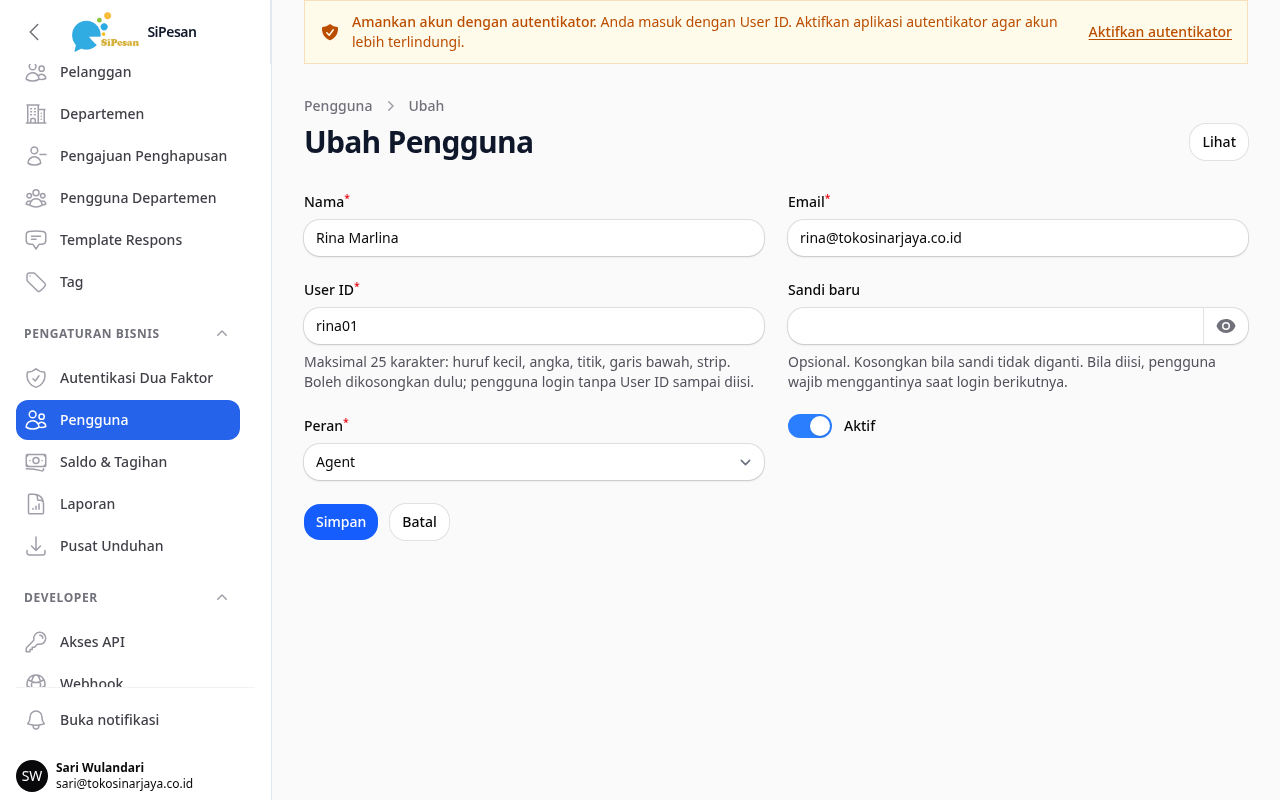
- Click Save changes. The new role appears in the Department Users menu for every department that the user is a member of.
Note that only Admins can open the Users menu. Department membership determines automatic chat assignment and the concurrent chat limit. The details are in the Departments topic.
Example role setup
The following example uses the customer service team of Toko Sinar Jaya.
Sari (Admin) owns the shop. Sari connects the shop's WhatsApp number, adds accounts for the team, checks the balance and transaction history, and creates API credentials for the cashier system. Sari is also the one who requests data deletion when a customer asks for it.
Hendra (Supervisor) leads the CS team. Hendra creates the Penjualan and Layanan Purnajual departments, adds agents to the departments, and reads the agent performance report at the end of every month. When Rina submits a promotional broadcast, Hendra checks its content and then approves it. Hendra cannot open the channel menus or the Users menu.
Rina (Agent) replies to customer chats. Rina reads chats held by colleagues to follow the conversation, but can reply only after taking over the chat. Rina uses Template Responses that Rina created and adds tags to chats. Rina does not open the Departments, Customers, Reports, or Download Center menus.